

Business Consulting
Understand what is driving your business before you change anything.


If you’re using HubSpot in a professional services or B2B environment, you’ve probably felt the same tension many of our clients do: your team is busy, your portal is full of data, and yet it still feels like too much of the day is spent on admin rather than meaningful work.

In the “HubSpot AI in Action” webinar, AutomateNow’s Project Manager Sam Easton started with that reality, not with the technology. She spoke about teams who are constantly switching between tabs, rewriting the same emails, and manually updating records – and yet are still under pressure to “do more with less”.
As Sam put it:
“AI isn’t there to impress your board with clever features. It’s there to quietly take work off your plate so your humans can do what only humans can do.”
She also highlighted a sobering fact: around 95% of companies worldwide still haven’t seen meaningful ROI from their AI spend. Not because AI doesn’t work, but because there’s no clear intent behind how it’s used.
At the same time, HubSpot now has over 100 AI features built into paid subscriptions. They’re just sitting there, ready to go – while many teams are still copying content into external tools or doing the heavy lifting themselves.
This guide takes the most practical insights from the webinar and turns them into a story you might recognise: a busy team, real pains, and specific HubSpot AI tools that can help – even if you don’t have a technical background.
In a conversation with HubSpot’s Sarah McDevitt, AutomateNow founder Bart landed on a simple way to make sense of AI in everyday work. Most of the work in your business falls into three buckets:
AI-only tasks (around 20%)
Think of all the things your team does that require almost no judgement: updating fields, summarising calls, pulling out key phrases, logging activity. These are important, but not a good use of human brainpower.
AI + human tasks (around 20%)
This is where you and AI work together: drafting emails, building reports, generating lists, suggesting next steps. Here, AI gives you a first draft, and you refine and approve.
Human-only tasks (around 60%)
This is where your value really sits: listening to clients, asking good questions, negotiating terms, handling tricky service situations, building trust over time.
Sam framed it nicely:
“If we try to automate everything, we end up squeezing the life out of the work that actually wins deals and keeps customers loyal.”
The rest of this article walks through HubSpot AI tools with that lens – using AI to clear the noise from buckets 1 and 2, so your team can deliberately protect that human 60%.
Most teams don’t resist AI because they dislike it; they resist it because the day already feels too full. So we start with tools that fit into what you’re doing right now, without changing your process.
Picture a typical sales call. Your rep has half an eye on the clock, a prospect on Zoom, and HubSpot open in the background. They jot down something like:
“Spoke to Andre yesterday. Keen to talk more. Busy this week. I’ll ring Tuesday.”
It makes sense to them in the moment, but two weeks later – when someone else needs to pick up that relationship – it’s not enough. The pain here is simple: everyone promises to keep better notes, but the reality of the day gets in the way.
This is where Notes Assistant steps in.
How it helps:
On a contact, company, deal or ticket, your team can type notes exactly as they think.
They highlight the scrappy text, click the little AI star, and choose to expand, rewrite, or change the tone.
In seconds, HubSpot turns that shorthand into a clear, professional summary.
Instead of asking your team to be better writers, you’re asking them to capture the essence of the conversation – and letting AI handle the tidy-up.
Sam’s take during the session:
“You don’t need to write like a novelist. You just need to give AI enough raw material so that anyone on your team could understand what actually happened.”
The result is a CRM that genuinely supports collaboration, without asking your people to slow down.
Many of our clients have one person who “owns” HubSpot marketing. They’re expected to be strategist, copywriter, analyst and campaign manager all at once – and by the time they get to writing LinkedIn posts or emails, the tank is often empty.
They know what they want to say, but the blinking cursor wins.
HubSpot’s Content Assistant lives exactly where this happens – inside the social, blog and email editors – and acts like a friendly junior copywriter.
Real-world flow:
1. Your marketer opens Marketing → Social and clicks to create a new post.
2. Instead of starting from scratch, they click the AI star and choose Generate social post.
3. They type something plain and human like:
“Promote our HubSpot AI in Action webinar about using AI in HubSpot without needing technical skills.”
4. HubSpot suggests multiple post options, complete with hooks and calls to action.5. They pick the best one, tweak a sentence or two, add an image and schedule.
This doesn’t replace their judgment – it just gets them past the blank page.
It’s even more powerful when you set up Brand Voice (Settings → Account defaults → Branding → Brand voice) so AI content naturally sounds like your firm, not a generic template.
Now think of your sales or account management team. After a strong discovery call, they know they should send a detailed follow-up email – summarising the conversation, reinforcing value, outlining next steps. But as the day fills up, that carefully crafted email turns into a rushed two-liner or gets delayed until tomorrow.
The pain is familiar: important follow-ups are the first thing to get compromised when time is tight.
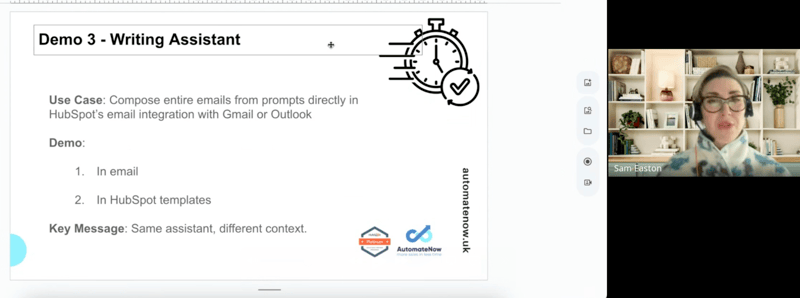
With HubSpot’s Writing Assistant (available in Outlook, Gmail and templates), the process changes:
Your rep clicks Write an email for me.
They fill in a few simple fields:
Purpose: “Follow up after HubSpot demo call”
Recipient role: “VP of Marketing”
Key points: “Thank them for time, recap that HubSpot is a strong fit, explain we help with onboarding/migration/process mapping, mention quote attached”
Tone: Professional
HubSpot generates a structured, well-written email with paragraphs and flow.
The rep quickly checks it, tweaks any details, and sends.
Sam summed up this kind of use case nicely:
“Let AI write the first 80%. Put your energy into the 20% that really matters – the nuance, the relationship, the bits that can’t be automated.”
The added bonus? If the email works well, you can save it as a template – turning one good follow-up into a repeatable asset for your whole team.
Beyond everyday writing and notes, the next set of pains we see are more structural:
“I know who I want to target, but I can’t remember how to build the list”
“I can picture the workflow, but I get lost in the builder”
“I know the question I want to ask in a report, not which objects to join”
HubSpot’s AI helps here by transforming plain language into lists, workflows and reports.
Imagine your marketing manager being asked:
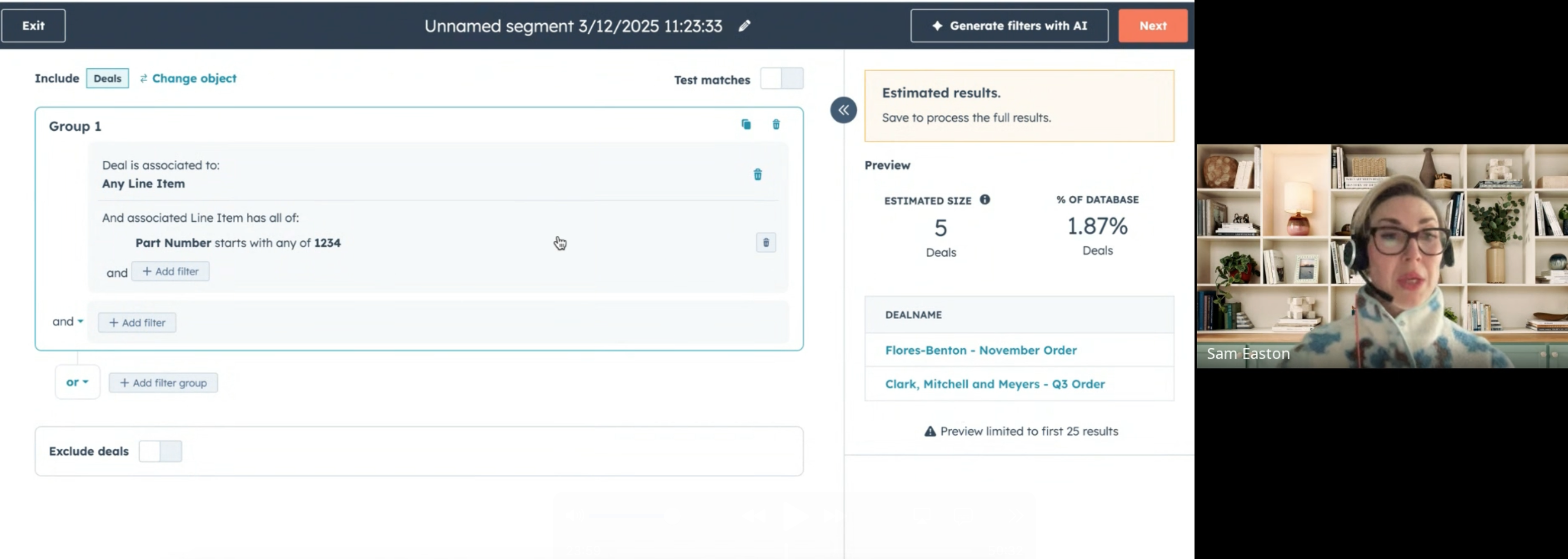
“Can you pull a list of all open deals that include a certain product range so we can run a specific campaign?”
They know what they need, but they’re staring at objects, properties and associations that feel increasingly complex.
With AI-powered Segments (Lists), they can start with the way they’d explain it out loud:
“Build a list of deals with associated line items where the part number starts with 1234.”
HubSpot translates that into:
Base object: Deals
Association: Line items
Filter: Line item part number starts with 1234
From there, your team can refine as needed – adding pipeline stages, regions or owner filters.
It doesn’t let you skip understanding your data model entirely, but it removes the fear of the “wrong click” and gives less technical users a safe starting point.
Most people can talk through a process easily:
“When someone fills out this form, send a thank-you email, wait a day, then create a follow-up task for the sales owner.”
But when they click into the workflow builder and see enrolment triggers, delays, branches and actions, the confidence drops.
HubSpot’s AI workflow builder is designed for exactly that gap.
You describe the journey you want, for example:
“Create a workflow that sends a thank-you email to a new contact that fills out a form, waits one day, and creates a task to follow up.”
HubSpot then:
Suggests the enrolment trigger (form submission)
Adds the thank-you email step
Inserts a delay
Creates a follow-up task
You remain in control: you check the right form is used, move the delay if needed, swap in a different email, assign tasks to queues, and so on.
Sam was candid about this:
“AI won’t magically understand your entire process. But it will build a first draft faster than most of us can, and that’s usually enough to get you moving.”
For busy teams, that “first draft” is the difference between another idea stuck on a whiteboard and a live automation in HubSpot.
Reporting pain often comes from this mismatch:
Leadership asks a clear business question:
“Which companies brought in the most revenue last quarter?”
HubSpot asks a technical question:
“Which primary data source would you like to use, and how would you like to join it?”
With AI-generated reports, you can start from the question you actually care about:
“Deal revenue by company for last quarter.”
HubSpot responds by:
Selecting Deals as the primary object
Using Amount in company currency as the metric
Filtering on Closed date is last quarter
Building a chart showing revenue per company
From there, you can customise:
Add extra metrics (e.g. average deal age)
Change chart type
Tweak filters
You’re still the one deciding what “good” looks like, but you’re no longer blocked by the mechanics of the builder.
Once you’ve got the basics working, there are a couple of heavier-hitting tools that can genuinely change how your team experiences the CRM day to day.
Account managers and senior leaders often complain that they “don’t have time to scroll through the whole timeline” before a meeting. They want to understand the story so far, but the combination of notes, emails, calls and updates is too much to digest quickly.
Smart properties were built with exactly that pain in mind.
Here’s how it looks in practice:
You already have a long text property – for example, “Description of first engagement” or a manually maintained “relationship notes” field.
You create a new property, such as “Latest contact AI summary”, that will hold a short AI-generated summary.
Using the smart property setup, you tell HubSpot to:
Pull from the long text property
Use a prompt like:
“Summarise this in 30–40 words, including budget, timeline and key challenge if mentioned.”
You ask HubSpot to fill this for existing records (using credits) and then keep it updated.
The result? On a contact or company record, your team now sees a concise summary alongside all the raw detail. Before a call, they can get oriented in seconds and then dive deeper if needed.
Sam emphasised the mindset here:
“We’re not asking AI to replace our understanding of the customer. We’re asking it to give us a starting point that means we don’t walk into conversations blind.”
Currently, smart properties work on contacts and companies, but you can sync data from deals or tickets if you need that context summarised too.
Finally, there’s Breeze – HubSpot’s AI assistant that lives inside your portal and can see your CRM data.
Many teams are used to copying bits of information into separate AI tools to brainstorm ideas or research prospects. Breeze reduces that friction by staying inside HubSpot and combining:
What it knows from your CRM
What it can see on the public web
For example, instead of vaguely asking for “new companies to target”, a more targeted prompt might be:
“Identify five high-fit B2B companies headquartered in Edinburgh that do not yet exist as companies in this HubSpot portal. Prioritise tech or professional services organisations similar to our existing best customers, and return the results in a table with employee count, industry, and a one-sentence explanation of why each is a good fit.”
Breeze can then:
Cross-check your existing companies to avoid obvious duplicates
Suggest potential targets
Explain why they seem aligned with your ideal customer profile
It’s not perfect, and you’ll still need to sanity-check the results, but when you pair it with smart prompts, it starts to feel like a genuine prospecting assistant instead of a novelty.
Sam was honest about this in the webinar:
“Sometimes the first answer from AI isn’t great. That’s not a failure – it’s a sign to refine the question. The better your prompts get, the more useful the assistant becomes.”
Features like smart properties and certain data agents use HubSpot credits, which refresh monthly and scale with your subscription level.
You can see usage by:
Clicking your portal name (top right) → HubSpot credits
Reviewing how many credits you have and which tools are using them
This matters if you:
Bulk-enrich many records at once
Use AI summarisers in workflows
Rely heavily on advanced assistants
Think of credits as fuel for the heavier tasks. Everyday tools like quick rewrites or social posts typically don’t cause issues; it’s large-scale operations that need a bit of planning.
Under Settings → Account management → AI, you can:
Toggle specific AI features on or off
Decide which teams can use which tools
Control how and where AI can write back into HubSpot
For professional, regulated and knowledge-based industries, this governance layer is crucial. It lets you introduce AI gradually, starting with low-risk, high-impact use cases, and build trust over time.
From the webinar:
100+ AI features now available inside HubSpot
95% of companies globally still haven’t seen true AI ROI
A healthy working split: 20% AI-only, 20% AI + human, 60% human-only
These aren’t abstract figures – they’re a reminder to use AI where it clearly helps, without trying to automate the heart out of your business.
If this all feels like a lot, Sam suggested starting small and intentional:
Pick one everyday tool and commit to it
For example: Notes Assistant or Writing Assistant.
Ask your team to use it for two weeks and share what genuinely helped.
Set your Brand Voice
So content generated by AI sounds like you, not like a generic blog.
Use AI to build one list, workflow or report
Choose a real use case (e.g. “Re-engage trial sign-ups from the last six months.”)
Let AI build the first version, then refine.
Pilot a smart property for key accounts
Give account managers a one-line summary field that AI keeps up to date.
Protect the human 60%
Whenever you introduce an AI-powered time-saver, ask:
“What human work are we freeing time for?”
Make that explicit – better discovery calls, more thoughtful follow-ups, more proactive service.
As Sam reminded everyone:
“AI shouldn’t be replacing your work. It should be accelerating it – so you can spend more time on the conversations and decisions that actually move the needle.”
If you’d like help turning this into a tailored HubSpot AI playbook for your organisation – aligning marketing, sales and service around processes that actually drive revenue – AutomateNow is here to support you, using the tools you already own to grow smarter and make a bigger impact.

Created by AutomateNow experts (with AI assistance) to help you work smarter and maximise your HubSpot ROI.